
Turn a Reference Image Into a Real Page With OpenDesign (Free via Gemini)
A reference-image workflow for OpenDesign — grab a design you like, drop it in, and have OpenDesign build a real page in that visual language, running free on Gemini CLI's free tier in Compile Future's recording. That direct runtime is now retired; current releases use a supported local runtime or Google Gemini through BYOK.
This guide is about a specific, underused OpenDesign workflow: start from a reference image. Find a design you like — a Dribbble shot, a screenshot of any site — drop it in, and OpenDesign builds a real page in that visual language. And you can run the whole thing for free on a coding agent’s free tier. It follows the walkthrough Compile Future gives in their video, rewritten and brought up to date with the current release. Watch the video above, or read on for the written version.
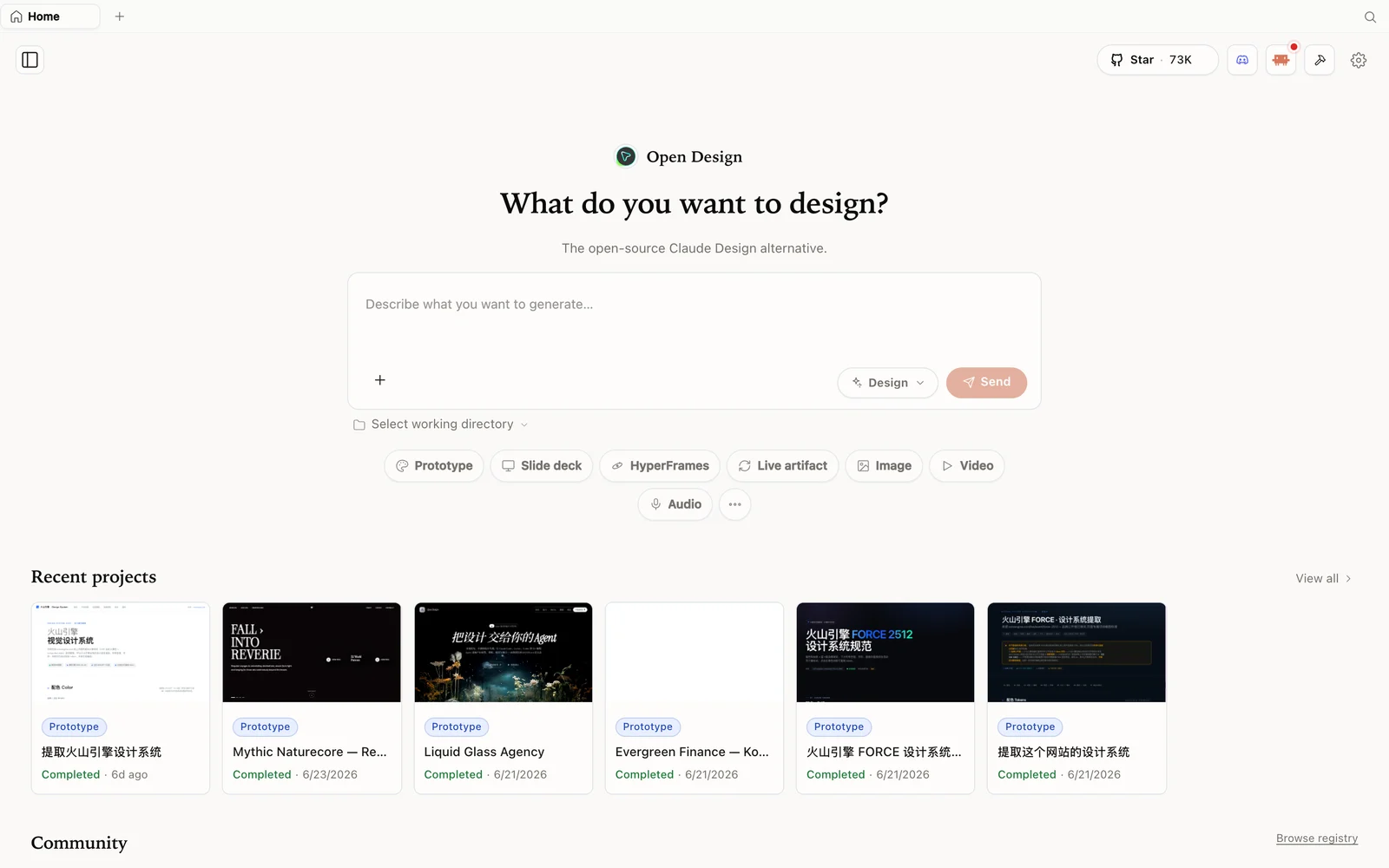 The OpenDesign workspace: describe what you want to build, pick a mode, and your agent does the rest.
What is OpenDesign?
OpenDesign is an open-source, local-first design platform — a Claude Design alternative that runs on your own machine. The headline difference: instead of being locked to one model, it drives the coding agent you already use — Claude Code, Codex, Cursor, OpenCode, Qwen, and more. It ships with a deep library of skills and brand design systems (Airbnb, Apple, Cursor, Ferrari, Figma, and many more), so generation starts from a real aesthetic rather than a generic prompt.
- Open source, Apache-2.0 — clone it, self-host it, or just download the app.
- Runs locally — your projects live on your own machine.
- Any model — including free tiers; no GPU required (the model runs in the cloud via your CLI, not on your hardware).
Step 1 — Install and connect a free model
Download the installer from open-design.ai/download (macOS DMG or Windows .exe), or run from source. On first launch, choose your runtime. Compile Future’s recording used Gemini CLI, but current releases have retired that direct runtime. To follow the workflow today:
- Pick a supported local runtime such as OpenCode, or configure Google Gemini as a BYOK provider with an API key and model. BYOK runs through OpenDesign’s isolated OpenCode adapter; it does not invoke the
geminiexecutable. - Prefer something else? Any detected CLI works, or bring your own API key.
This is why “no GPU”: the model runs through your CLI in the cloud, so even a modest laptop is fine.
Step 2 — Build from a text prompt (the baseline)
Set a default design system (Compile Future likes a bold one), choose Prototype, name it, and pick high fidelity for the best output. Send your brief. OpenDesign asks a few discovery questions (single tool / landing page / all-in-one? responsive? tone? brand context?) and a visual direction (e.g. a Vercel-style minimal look), then builds a clean first version. You can adjust accent colors right on the page.
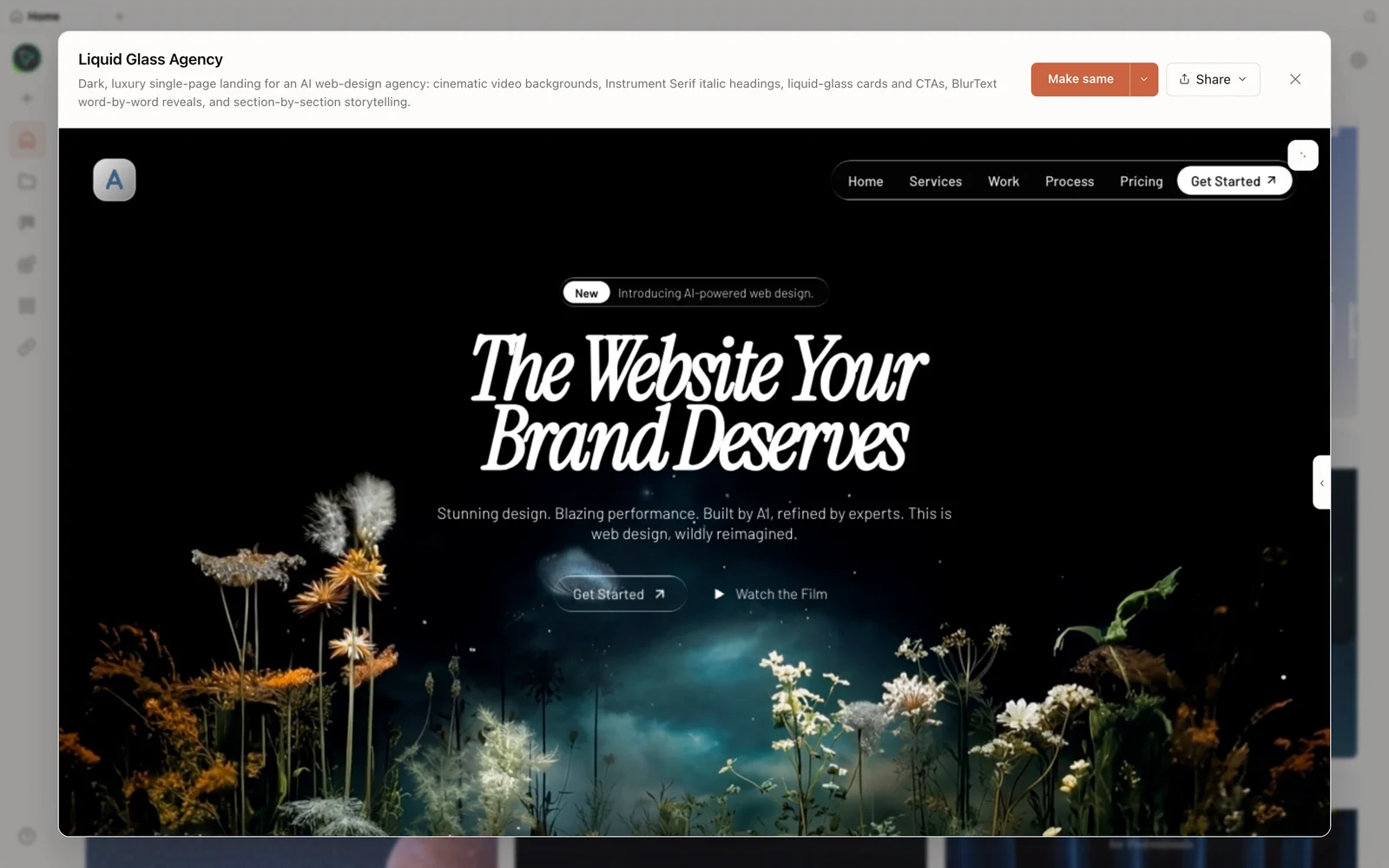 A real generated prototype rendered in the preview — a dark, cinematic agency landing page.
Step 3 — The reference-image workflow (the good part)
Here’s the technique worth the video. Instead of describing a look in words, show OpenDesign the look:
- Find a design you like — browse Dribbble (search e.g. “tools website”) or any live site for inspiration.
- Save a screenshot of it.
- Back in OpenDesign, create a project in free-form mode, attach the screenshot, and prompt: “build my [site], use the design language from the image I shared.”
- Answer the discovery questions, telling it to match the UI of the image.
OpenDesign writes a brand spec from the reference (it’ll show it and ask you to confirm), then builds the page in that visual language — same layout feel, colors, and type as your reference, applied to your content. It’s the fastest way to get an on-brand result when you can see what you want but can’t describe it.
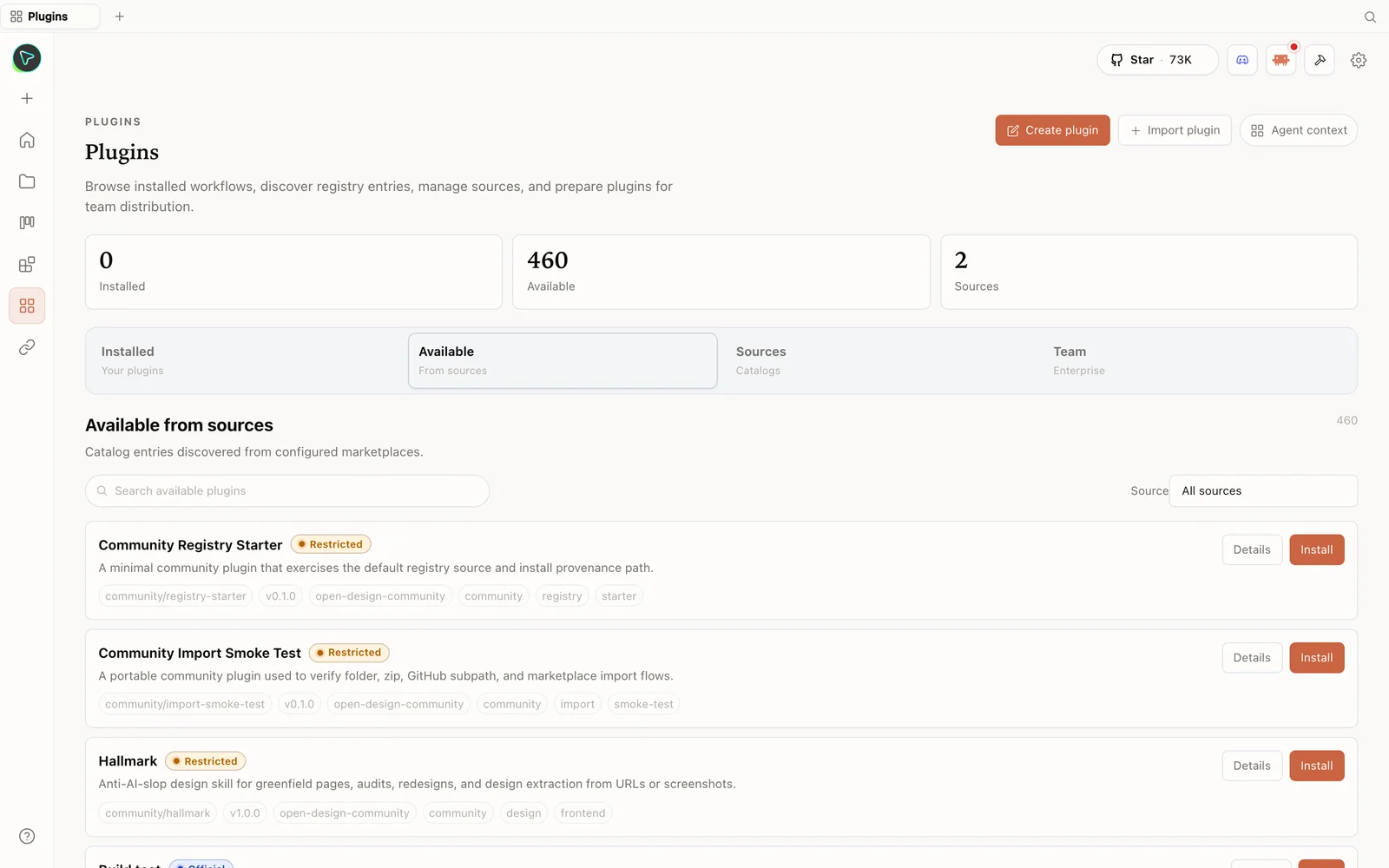 The plugin library: install skills straight from the registry — including anti-slop design skills.
Step 4 — Edit and ship
Refine in plain language — “remove the sign-in button,” “adjust the card radius” — and watch it update. View the code via Source, then Share to download a ZIP, PDF, or PowerPoint, export standalone HTML, or deploy to Vercel in one click (just paste a Vercel token) for a shareable link.
Tips
- Use a supported free-tier runtime or Google Gemini BYOK allowance — no separate OpenDesign subscription or GPU.
- Use a reference image when you can picture the look but can’t describe it — Dribbble or any site screenshot.
- Free-form mode + “match the image” is the prompt pattern that nails the reference.
- Confirm the brand spec it generates before it builds, so the direction is right.
- High fidelity for polished output; iterate with plain-language edits.
FAQ
Do I need a GPU? No. The model runs through your CLI (in the cloud), not on your machine — a normal laptop is fine.
Can I really run it for free? Yes — point it at a supported free-tier runtime, or use a provider allowance through BYOK; you only pay if you choose a paid model/API.
How do I design from an image I like? Use free-form mode, attach the screenshot, and tell it to use the design language of the image; it extracts a brand spec and builds in that style.
Is it free and open source? Yes — Apache-2.0. Run it locally for free; you only pay for the model/media usage of whatever you connect.
This written guide is based on Compile Future’s walkthrough. Watch the full video above, and subscribe to Compile Future for more free AI workflows.