
OpenDesign vs Figma and Claude Design — A Full Walkthrough
A complete tour of OpenDesign framed around one question — where does an agent-native workspace fit next to Figma? Install it, configure any agent, work with design systems, build a real landing page, iterate with on-canvas tools, and export. Based on Anton Larichev's hands-on walkthrough.
This guide is a complete walkthrough of OpenDesign framed around one question: where does an agent-native design workspace fit next to Figma and Claude Design? It installs the app, configures an agent, works with the built-in design systems, builds a real landing page end to end, iterates with the on-canvas tools, and exports the result. It follows the path Anton Larichev (PurpleSchool) took in his hands-on walkthrough, rewritten and brought up to date with the current release. Watch the video above for the live run, or read on for the written version.
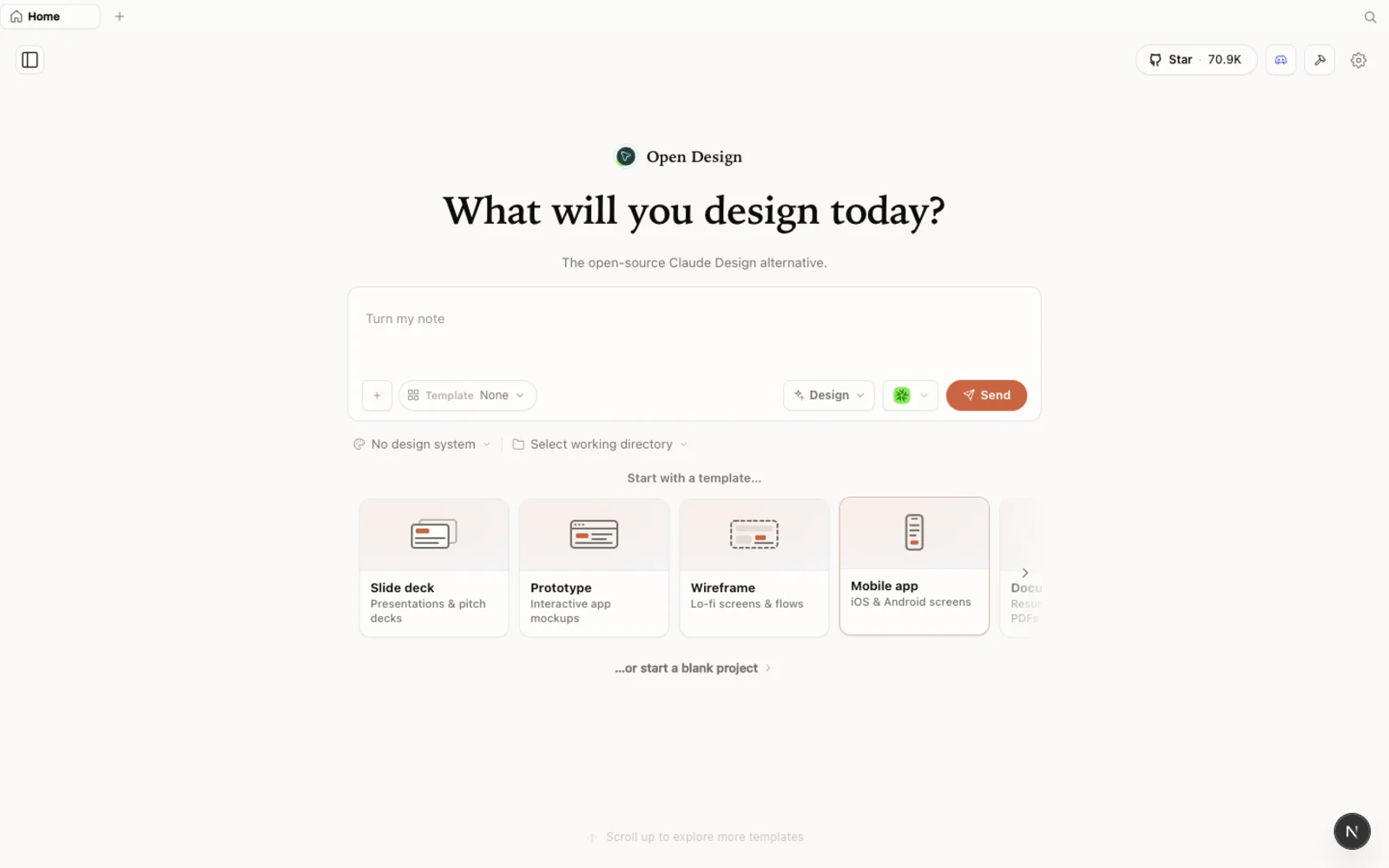 The OpenDesign workspace — prototypes, slide decks, images, and video in one calm, familiar canvas.
What is OpenDesign?
OpenDesign is an open-source, local-first design platform that runs on top of the coding agent you already use. Instead of being tied to one model, it detects the supported CLIs already on your machine — Claude Code, Codex, Cursor, Copilot, OpenCode, Qwen, and a couple of dozen more — and lets that agent drive generation. Anton’s framing is exact: it looks a lot like Claude Design on the surface, but under the hood it is “just an extra UI that drives the same agents you already have installed.” You are not paying a second subscription on top of your coding plan.
What makes it worth a serious look:
- Open source, Apache-2.0 — clone it, self-host it, use it in client work.
- Runs locally — nothing uploads; your projects live in folders on your own machine.
- Agent-pluggable — point it at any supported CLI, or bring your own API key for a different harness.
- A deep library of design systems and skills built in, so you don’t start from a blank canvas.
- More than static design — prototypes, slide decks, image generation, and video, all from one workspace.
How it differs from Figma
This is the comparison most people actually want, so let’s be direct about it.
Figma is a manual, collaborative vector editor. You move every frame, draw every component, and the strength is precision and real-time teamwork. Nothing here generates the design for you — you are the designer doing the work.
OpenDesign inverts that. You describe what you want, pick a design system, and the agent generates a real, interactive HTML artifact you then refine. The output is code, not a vector file — which means whatever you build is immediately closer to your actual project.
A point Anton is honest about: OpenDesign is currently weak at pulling a design system out of a Figma file. If you feed it a Figma export today, the extracted system tends to come back messy. So if your source of truth lives in Figma, the cleaner route is to have your agent turn that Figma design into code first, then bring the code into OpenDesign (more on that below). Treat OpenDesign as a generation-and-iteration surface, not a Figma importer.
How it differs from Claude Design
If you have used Claude Design, the interface will feel instantly familiar — same calm aesthetic, same artifact-first loop. The differences that matter:
- Any model, not just one. Claude Design locks you to Opus 4.7. OpenDesign drives whatever agent you choose — and you can switch mid-project.
- Media generation built in. Add provider keys (OpenAI GPT Image, MiniMax, ElevenLabs, and more) and OpenDesign will generate images, audio, and video inline. This is the standout difference Anton calls out — a single-provider design tool doesn’t give you this.
- Local and commercial-safe. Apache-2.0 plus local-first means client work never leaves your machine and never needs anyone’s permission.
Step 1 — Install OpenDesign
You have three ways in. Pick the one that fits you:
| Path | Best for | Requirements |
|---|---|---|
| Desktop app | Most people — zero config | None. Just download and open. |
| Run from source | Developers who want to read or modify the code | Node ~24, pnpm 10.33.x |
| Install into your agent | People who live in the terminal | An existing coding-agent CLI |
Option A — Desktop app (recommended, zero config)
Go to open-design.ai/download and grab the build for your OS. After installing, the app auto-detects every coding-agent CLI already on your PATH and loads the built-in skills and design systems for you. This is the fastest way to a working workspace.
Option B — Run from source
If you would rather run it from the repository — as Anton does in the video — it is a handful of commands:
git clone https://github.com/nexu-io/open-design.git
cd open-design
corepack enable && pnpm install
pnpm tools-dev run web
Open the local URL it prints. It resolves a dynamic port, so don’t hardcode one — just click whatever address it shows. You need Node ~24 and pnpm 10.33.x; Corepack selects the pinned pnpm version for you.
Option C — Install into your coding agent
To call OpenDesign as a skill inside your agent, without ever opening the GUI:
od mcp install <agent>
# <agent> = claude | codex | cursor | copilot | opencode | kiro | …
Then, inside the agent: Use open-design to generate a landing page with the Stripe design system.
Step 2 — Configure your agent
On first launch, OpenDesign scans your machine and shows every CLI it found, then walks you through a short setup:
- Pick the agent and model. Anton uses Claude Code on Opus 4.7 (“one of the best for design”), but you can point at Codex, OpenCode, or any other detected agent. There’s a Test button to confirm the connection.
- Or use an API key. Prefer not to use a local CLI? Set a base URL, key, and model instead.
- Add media providers. This is the differentiator — add keys for OpenAI GPT Image, MiniMax, ElevenLabs, and others to generate images, audio, and video on the spot.
- Toggle skills. Enable the design skills you need (system design, prototype, brand guidelines, and more); leave the rest off.
You can change all of this later, so keep the first pass simple.
Step 3 — Work with design systems
The design-systems library is the heart of the tool. Each entry takes a real brand and codifies its palette, typography, components, and overall atmosphere into a reusable system.
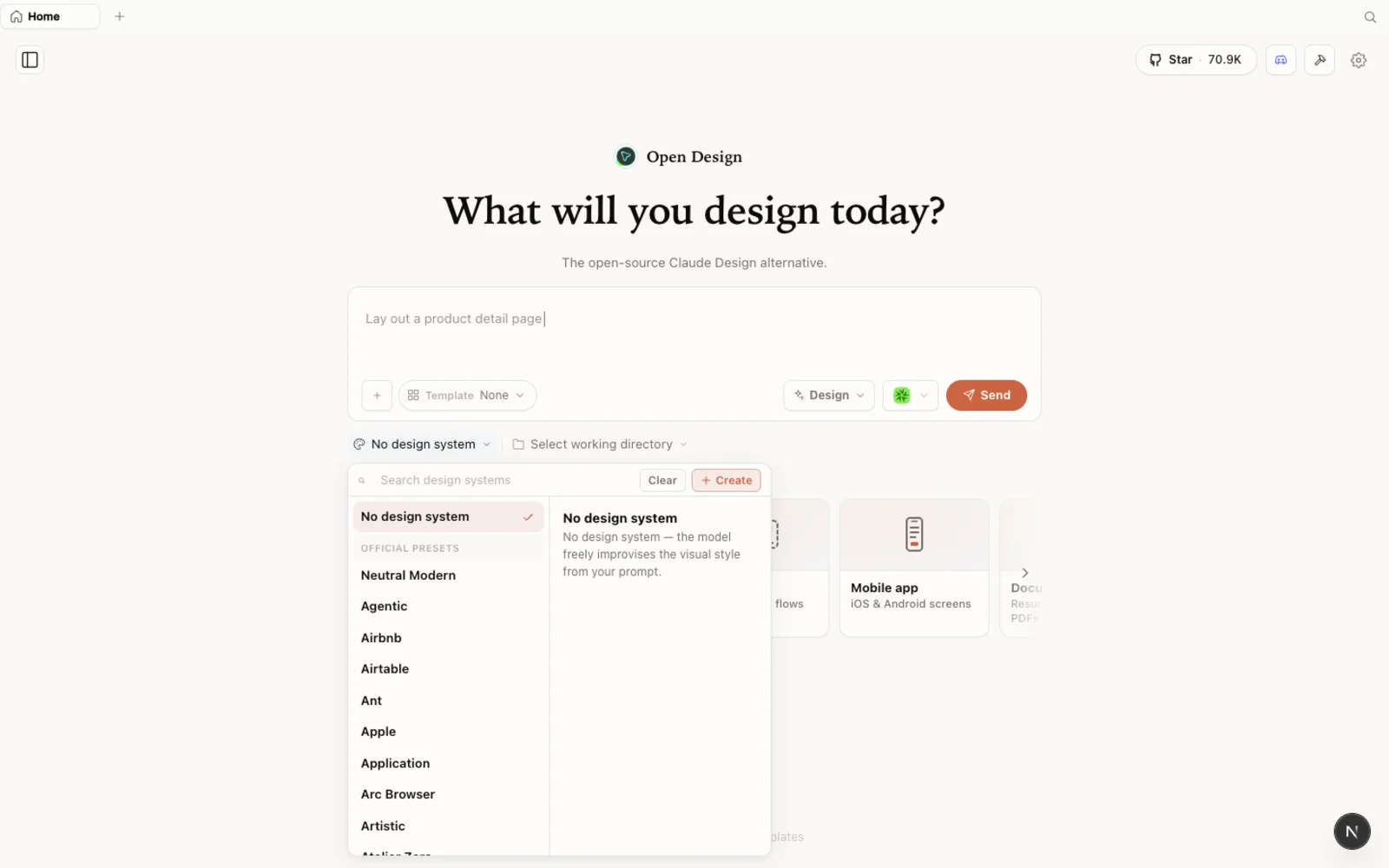 The design-systems library: each entry breaks a real brand down into palette, typography, components, and visual atmosphere you can reuse.
There are two ways to bring your own brand in, and Anton tests both:
- Import a Claude Design ZIP (cleanest today). Built a system in Claude Design? Open it there, choose Share → Download project as .zip, and drag that ZIP into OpenDesign. All your tokens and components carry straight over.
- Extract a system from existing code. Create a high-fidelity file with no design system attached, point its import at a folder of your real code, and ask the agent to derive a design system from it — colors, typography, spacing, and a JSX component kit. It won’t be perfect, but it’s a solid starting point you can adjust.
You can browse the full plugin library on the web at open-design.ai/plugins before installing anything.
Step 4 — Build a real page and iterate
The real workflow is building prototypes and slide decks. In the video, Anton builds a pricing/landing page for PurpleSchool against an imported design system:
- Create a project, choose web/desktop/mobile, and pick wireframe or high fidelity.
- Attach the design system and paste your brief (Anton uses a short spec: hero, pricing, features, FAQ, footer).
- Pick your model in the project (here, Claude Code on Opus) and send.
- Answer the clarifying questions OpenDesign asks before it writes a line — surface, audience, tone — then watch it work through a to-do list.
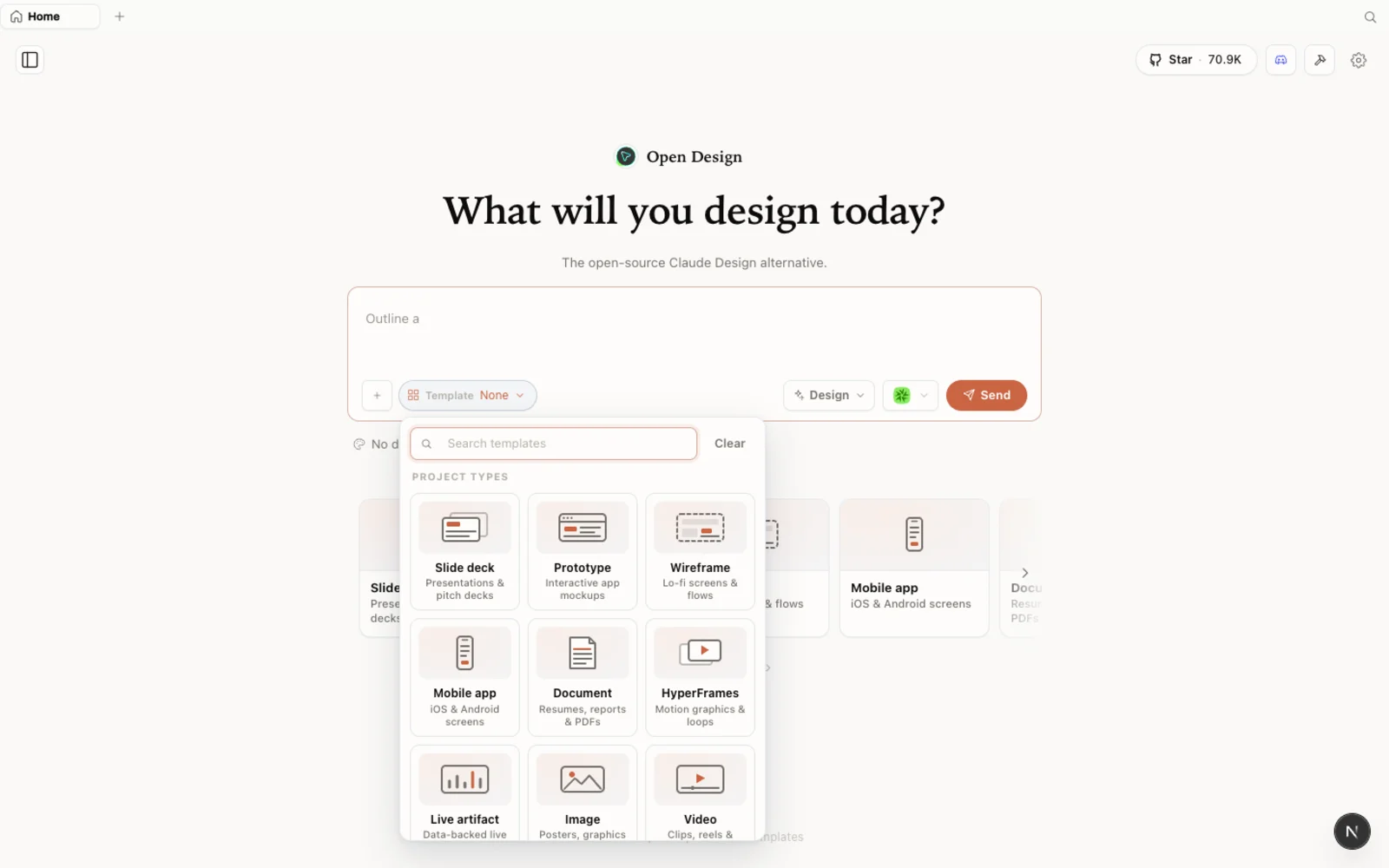 The templates library: prototype, slide, image, and video starting points you can filter by type and fork to begin.
Where OpenDesign earns its keep is the on-canvas iteration: select any block and comment on it, draw directly on the preview to point at what you want changed, edit fonts and sizes inline, and check the layout at desktop/tablet/mobile widths. It’s the fast feedback loop that’s awkward to reproduce with a plain agent in a terminal.
When you’re happy, export the result as standalone HTML or a ZIP and hand it to your team — or pull the code straight into your project.
Tips
- Don’t feed it raw Figma files. Figma extraction is the weakest path today; convert Figma to code first, then import the code.
- Import a Claude Design ZIP when you need your own brand — it’s the smoothest route in.
- Use a local CLI so generation rides on a subscription you already pay for, instead of per-call API fees.
- Lean on the on-canvas comment and draw tools — selecting a block and drawing on it is far faster than describing the change in prose.
- Expect a strong draft, then polish. Export early to catch small spacing and formatting drifts.
FAQ
Should I replace Figma with OpenDesign? No — they do different jobs. Figma is a precise, collaborative manual editor; OpenDesign is an agent-native generation-and-iteration surface that outputs code. Use OpenDesign to get from brief to a real, on-brand draft fast, and keep Figma for the work that needs hand precision and live collaboration.
Can it import my Figma designs? Indirectly. Direct Figma extraction is rough today. The reliable path is to convert the Figma design to code with your agent, then import that code (or import a Claude Design ZIP) into OpenDesign.
Do I have to use Claude? No. OpenDesign drives any supported agent — Codex, Cursor, OpenCode, Qwen, and more — and you can switch models mid-project, or configure a BYOK provider.
Is it free? The app is open source under Apache-2.0 and free to run locally. You only pay for the model and media usage of whichever agent and providers you connect.
This written guide is based on Anton Larichev’s hands-on walkthrough. Watch the full video above, and subscribe to PurpleSchool | Anton Larichev for more development and AI-tooling deep dives.