

The Beginner's Guide — Install OpenDesign on Your PC and Build Your First Page
A no-jargon beginner's guide — download OpenDesign as an app on Windows or Mac (no terminal needed), connect a model in one click, and build your first real web page with the discovery form and adjustment controls. No subscription, runs entirely on your PC. Based on Where Do I Click's walkthrough.
This guide is for absolute beginners: no terminal, no jargon. You’ll download OpenDesign as a normal app, connect a model in one click, and build your first real web page — all running on your own PC, with no subscription. It follows the friendly walkthrough Where Do I Click gives in their video, rewritten and brought up to date with the current release. Watch the video above for the live run, or read on for the written version.
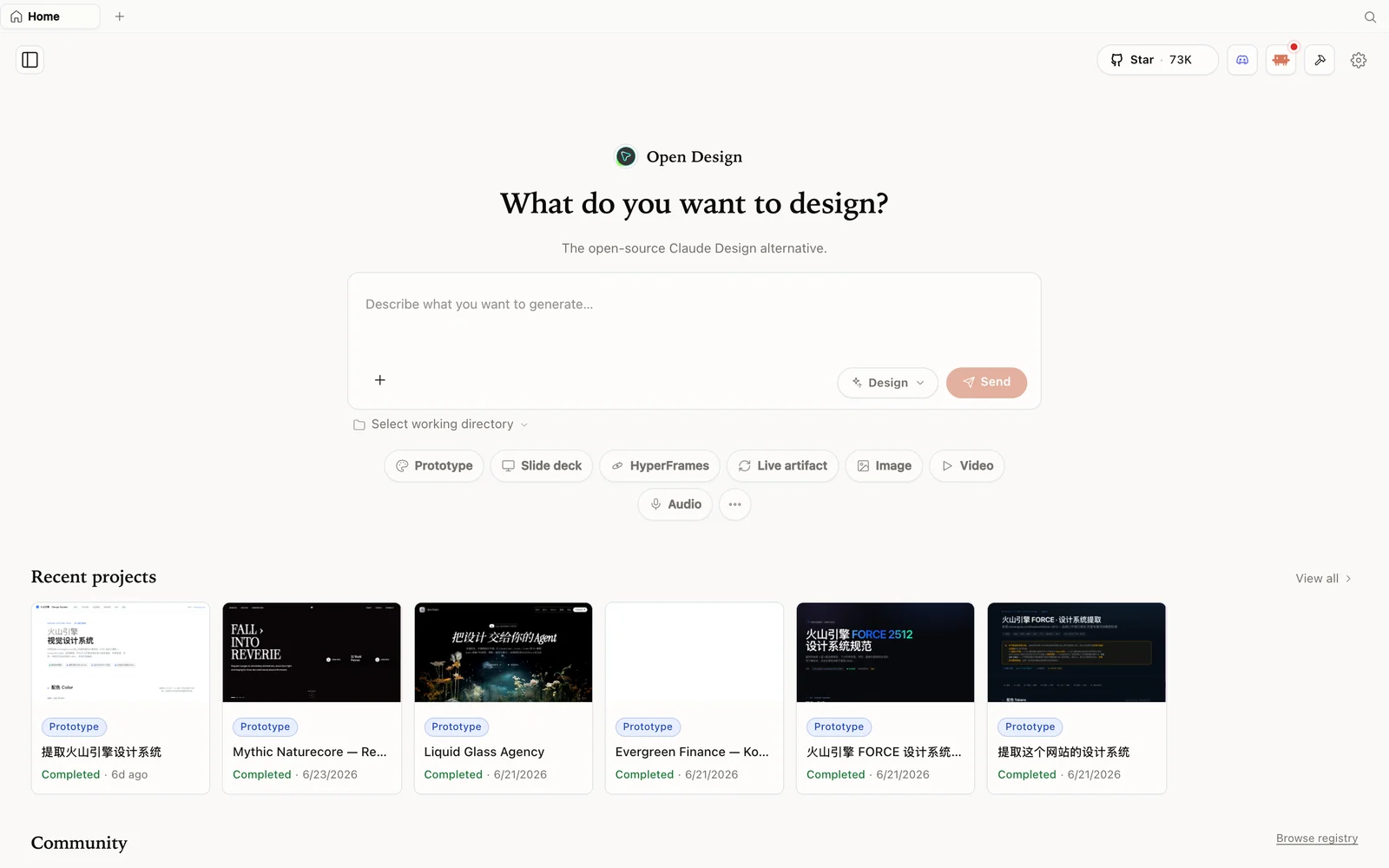 The OpenDesign workspace: describe what you want to build, pick a mode, and your agent does the rest.
What is OpenDesign (in plain terms)?
OpenDesign is a free, open-source design app you run on your own computer. You describe what you want — a landing page, an app screen, a deck — and an AI builds a real, editable version for you. The big differences from a paid cloud tool: it’s free, it runs locally (your files stay on your machine), and it works with whatever AI model you choose instead of locking you to one. As Where Do I Click puts it, a paid cloud tool is impressive but restrictive — you need a subscription and you burn through credits after a project or two. OpenDesign removes both walls.
Step 1 — Install it (the easy way: just download the app)
You don’t need to be comfortable with a terminal. The simplest route:
- Go to open-design.ai/download.
- Click Download and pick your OS — there are builds for Windows and macOS.
- Run the installer like any normal app. (On Windows you may see a “Windows protected your PC” notice — click More info → Run anyway; it’s just an unsigned indie build.)
- Always grab the latest version — the project updates often and newer builds have more bugs fixed.
(If you ever do want the developer route, the GitHub repo’s Quick Start has copy-paste commands — but the download is all most people need.)
Step 2 — Connect a model in one click
The first time it opens, OpenDesign automatically detects the supported AI tools already on your computer — things like Claude Code, Codex, OpenCode, or Qwen — and lists them. Click one and hit Get started.
No coding tools installed? No problem: choose API provider instead and paste a key from Anthropic, OpenAI, Azure, or Google Gemini. Either way, you’re ready in seconds. You can switch the model later from the same button, and the settings also let you add media providers, change the language, pick light/dark mode, and even adopt a little desktop pet that hangs out in the corner.
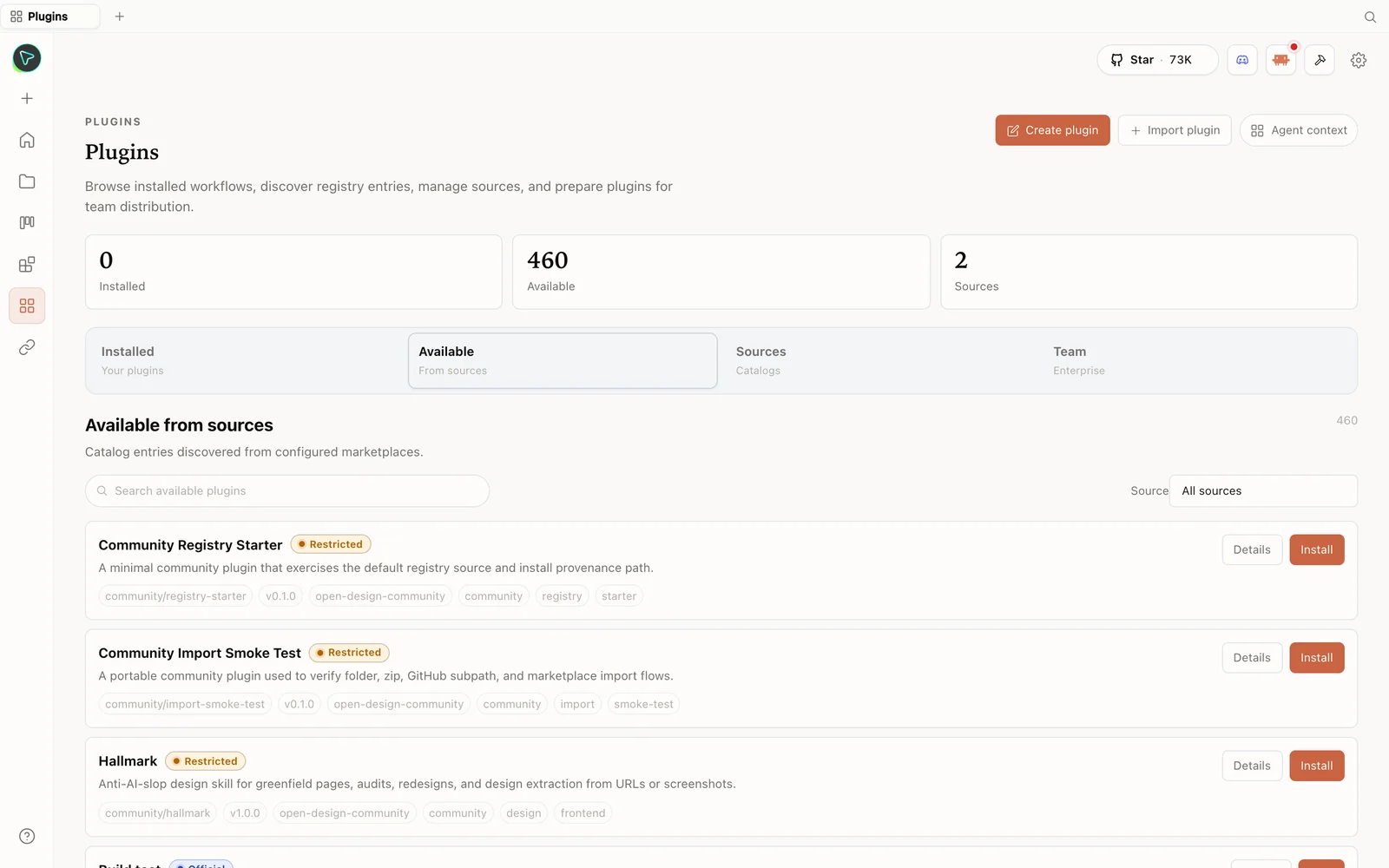 The plugin library: install skills straight from the registry — including anti-slop design skills.
Step 3 — Look around (examples & templates)
Before building, click Examples to preview real designs made with the tool — complex interfaces with animations and effects. Like one? Hit use this prompt to start from it. The Design systems, image, and video template tabs work the same way: preview, then reuse. It’s a friendly way to see what’s possible without a blank page.
Step 4 — Build your first page
- Choose Prototype, give it a name (Where Do I Click builds a real-estate agency page).
- Pick a design system (or leave it on free) and high fidelity.
- Click Create, paste your prompt, and send.
- OpenDesign asks a few discovery questions (desktop or mobile? tone? realistic images?) so it builds the right thing the first time — answer them and send.
- Pick a visual direction, and it builds your page: a clean interface with AI-generated images, real copy, and animations — genuinely close to a paid tool’s quality.
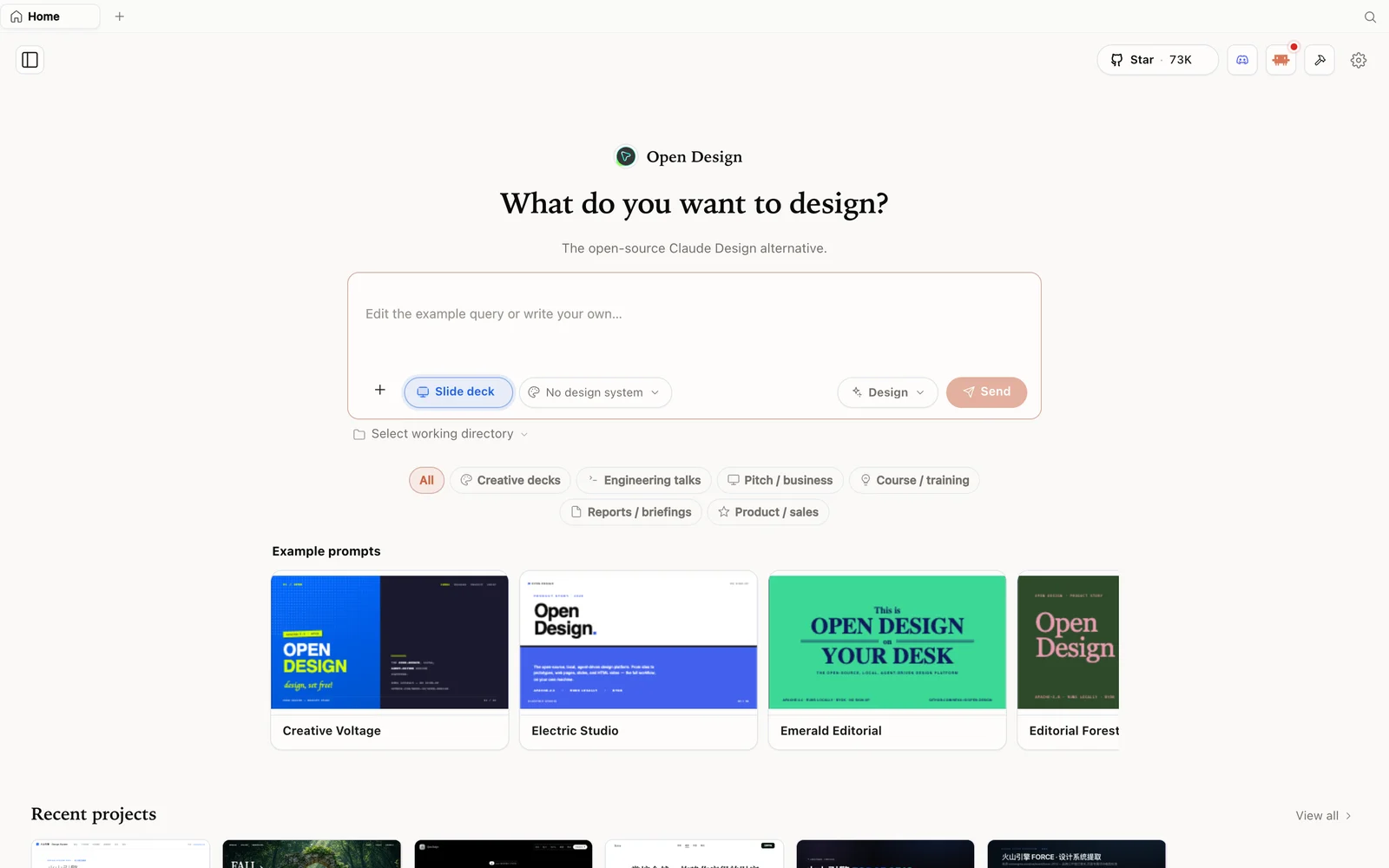 Slide-deck mode: choose a deck category and fork an example as your starting point.
Step 5 — Make changes without code
Turn on the adjustment controls and click whatever you want to change — say your agency’s name. A prompt box opens; type the change in plain language and it’s applied. That’s the whole loop: describe, generate, point-and-tweak. When you’re happy, you can export or keep iterating — and you never hit a weekly credit wall while you do.
Tips
- Download the app — it’s the no-terminal path, on Windows and macOS.
- No coding tool? Use the API-provider option with an Anthropic/OpenAI/Azure/Gemini key.
- Browse Examples first and reuse a prompt to skip the blank page.
- Answer the discovery questions — they’re how it nails what you want on the first try.
- Use the adjustment controls to change text and elements in plain language, no code.
FAQ
Do I need to know how to code? No. Download the app, click your model (or paste an API key), and build with plain-language prompts and point-and-click adjustments.
Does it really run on my own PC? Yes — it installs locally on Windows or macOS and your projects stay on your machine.
Do I need a subscription? No. OpenDesign is free; you only pay for the AI model usage of whichever agent or API key you connect — and there’s no separate weekly design cap.
Is it free and open source? Yes — Apache-2.0. Run it locally for free; you only pay for the model/media usage of whatever you connect.
This written guide is based on Where Do I Click’s walkthrough. Watch the full video above, and subscribe to Where Do I Click for more beginner-friendly AI-tool guides.